Wear OS Remote
The Wear OS Remote feature lets you control workouts directly from your watch while your handheld (phone, tablet) records the activity.
You can choose an activity type; start, pause, resume, and stop workouts; view live workout data; keep the screen on during tracking; and review a workout summary on your wrist.
Enabling Wear OS Remote
To enable Wear OS Remote, navigate to More → Wear OS Remote.
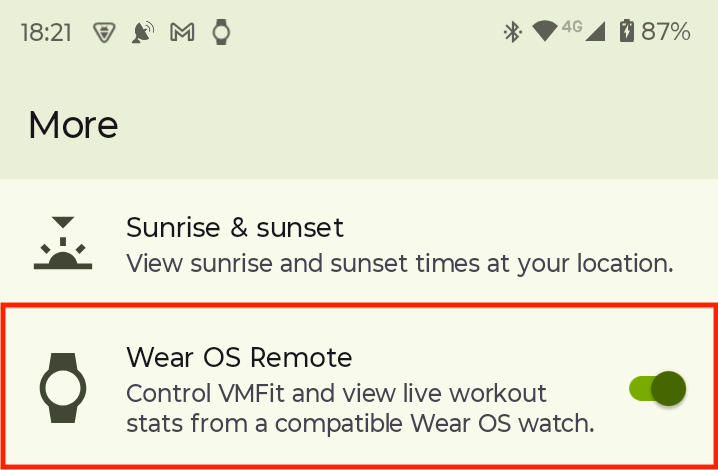
When turned on for the first time, Wear OS Remote will check whether there is a paired Wear OS watch with your device. If none is found, it will prompt you to pair a watch. Then it will check whether the VMFit Wear OS Companion App is installed on the paired watch. If it is not installed, it will offer to open the Google Play Store on your watch so you can install the app.
If Notifications, Location, and Background Location permissions are not granted, VMFit will prompt you to grant them in order to use Wear OS Remote.
Note: All 3 permissions are mandatory for the Wear OS Remote feature to work.
While enabled, Wear OS Remote will show a silent notification in the device notification area indicating that the feature is active. You can open the app directly from this notification or stop Wear OS Remote.
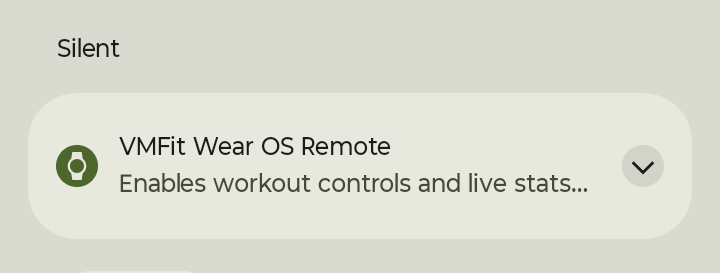
Note: Wear OS Remote will stay enabled until explicitly stopped by you or until your device is restarted. Wear OS Remote will not automatically start after a device restart.
Configuring display fields
You can configure the fields you want to see on your wearable during an activity from Activity Settings on your handheld device for each activity type individually.
For GPS-based activity types, you can configure up to 5 fields. For non-GPS-based activities, you can configure up to 3.
Using the companion app on your watch
When the VMFit companion app is launched on your Wear OS device, it will first check whether it can establish a connection with VMFit running on your handheld device. If the connection is established successfully and you are not currently recording an activity on your handheld, the app will let you pick the activity type you want to record.
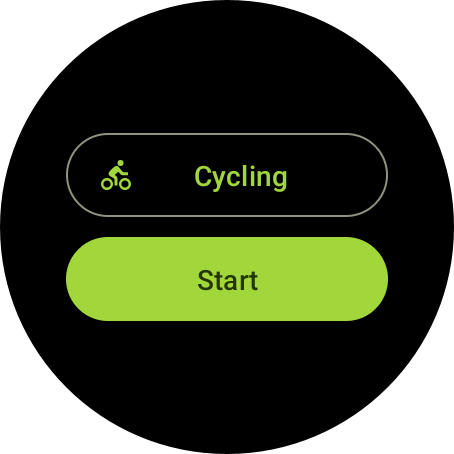
Pressing the Start button will start recording the selected activity type on your handheld device.
If the connection is established successfully and you are currently recording an activity on your handheld device, the app will show your current activity stats when launched.
Pause / Resume
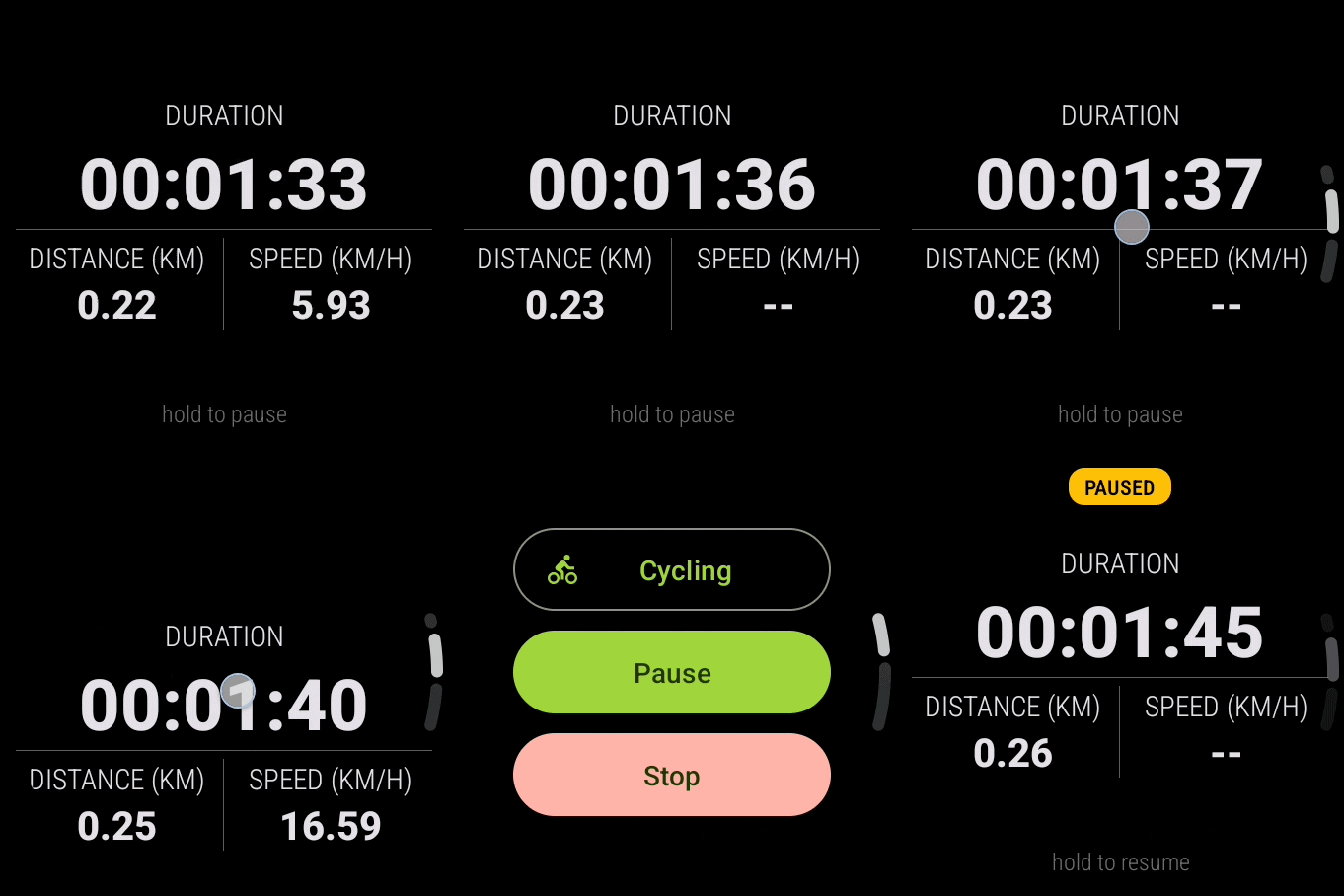
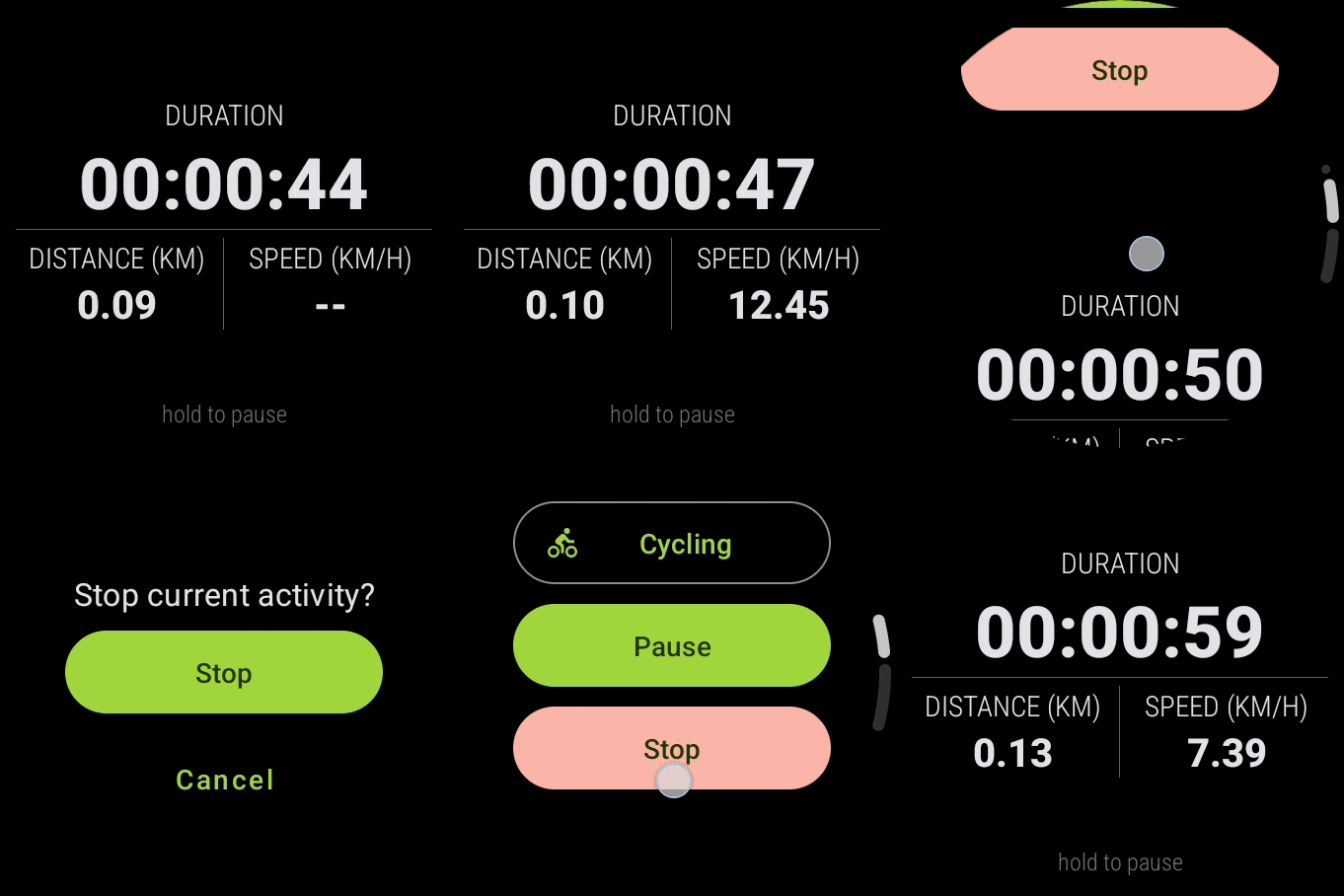
You can pause or resume an ongoing activity by tapping and holding a data screen, or by scrolling up and selecting Pause or Resume.
Stopping an activity
To stop an activity, scroll up from the data screens until you see the “Pause / Stop” screen. Tap Stop. You will be asked to confirm that you want to stop the activity.
Viewing summary
After stopping an activity, the watch app will retrieve your workout summary from your paired handheld and display it. If, for some reason, this does not happen, an error message will be shown stating that your summary cannot be retrieved and that you can view it on your paired device.
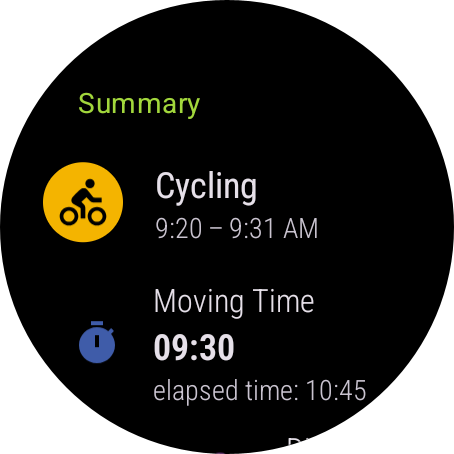
Note: The summary displayed on your wearable is a trimmed-down version of the activity details accessible from within the app. It shows only basic activity metrics. Detailed activity data is available in the handheld app.
Screen On
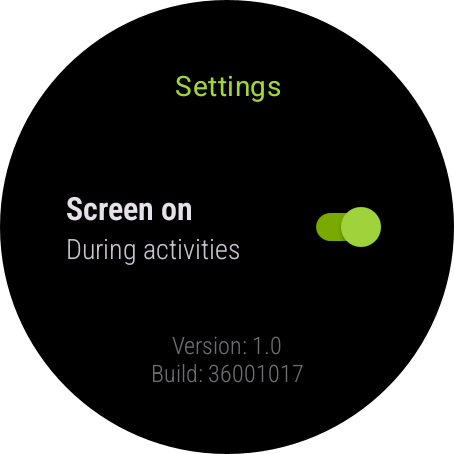
Enabling Screen On will prevent the watch screen from turning off during an activity.
Notifications Permission
On devices running Wear OS 4 or newer, the VMFit companion app will ask you for Notifications permission the first time you start an activity from your wearable.
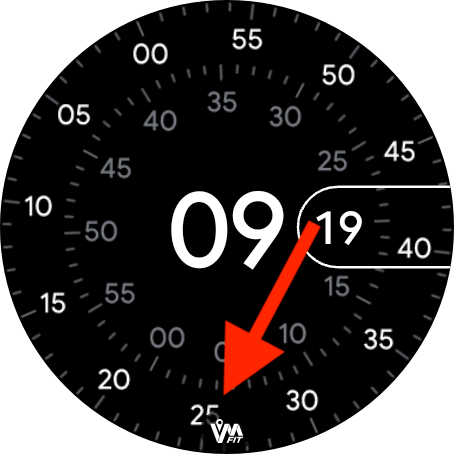
Granting the Notifications permission is optional but recommended, because it allows VMFit to show an ongoing notification directly on your watch face while activity recording is in progress. Tapping the notification will open the app.
Troubleshooting connectivity issues
If the VMFit Wear OS companion app cannot connect to VMFit on your handheld, an error message stating that the Wear OS Remote feature is unavailable will be displayed.
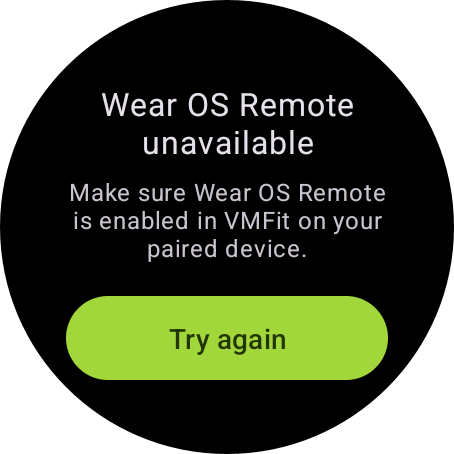
You can retry connecting with your handheld by tapping Try again.
Note: Your workout is not lost if the VMFit Wear OS companion app disconnects from your handheld. Your handheld will continue tracking the workout. Reconnect the watch app to continue viewing live stats on your wrist.
What to check when Wear OS Remote is unavailable
- Check that Wear OS Remote is enabled and running on your handheld. Open VMFit on your phone or tablet, navigate to More, then turn on Wear OS Remote.
- Check that your watch is connected to your handheld. See whether the watch companion app reports the watch as connected, or whether the watch itself reports that it is connected to the phone.
- Turn Bluetooth off and on again on both your watch and your handheld.