Importing data
Learn how to import activities from GPX files or add them manually.
GPX files
VMFit allows the import of single or multiple GPX files, as well as entire folders containing GPX files.
Importing files
To import single or multiple GPX files:
- Navigate to the History tab.
- Tap the Plus button in the bottom-right corner of the screen.
- The Add Activity screen will open.
- Choose Import GPX Files.
- The device’s default file picker will open. Select one or more GPX files you wish to import. Once the files are selected, the import process will begin automatically.
Note: Due to limitations of the Android file picker, we recommend using the Import GPX Folder option if you plan to import more than approximately 500 GPX files at once.
Importing folders
To import a GPX folder:
- Navigate to the History tab.
- Tap the Plus button in the bottom-right corner of the screen.
- The Add Activity screen will open.
- Choose Import GPX Folder.
- The device’s default file picker will open. Select the folder you wish to import. Once selected, the import process will begin automatically.
Import progress
The GPX import progress is displayed in both the device’s notification area
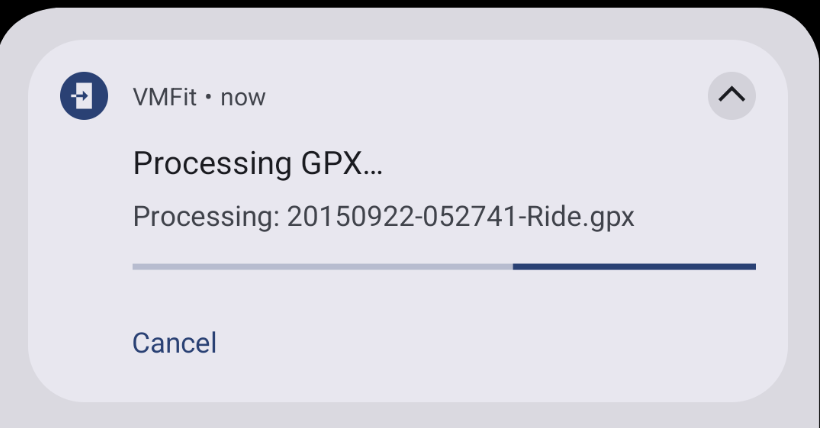
and at the bottom of the History tab.
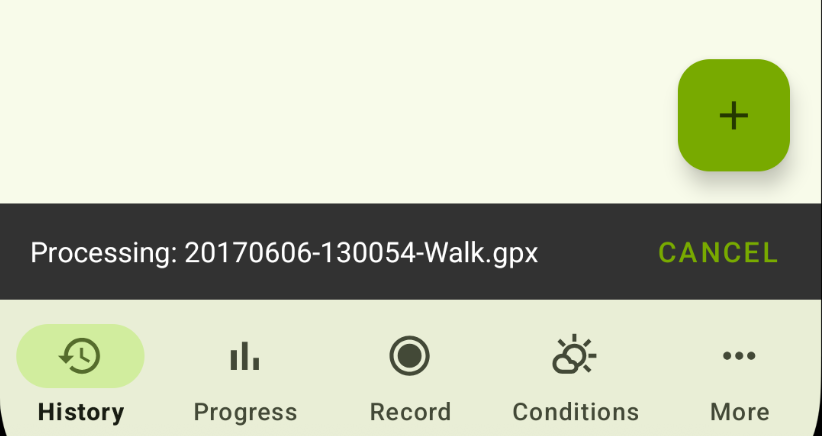
When the import is complete, you will have the option to review and confirm some or all of the processed GPX files.
For each GPX file, you can change the activity type and its name before finalizing the import.
Manual activity entry
To add a manual activity:
- Navigate to the History tab.
- Tap the Plus button in the bottom-right corner of the screen.
- The Add Activity screen will open.
- Choose Add Manual Activity. The Add Manual Activity screen will open.
The Add Manual Activity screen allows you to enter various activity properties depending on the type of activity you wish to record manually.